
“Your connection to this site is not secure” or a plain “Not Secure” label next to the address bar is one of the most common warnings a website owner ever sees.
It is almost always fixable in minutes once you know which of a small number of causes is behind it.
What the warning actually means
Modern browsers show this label whenever a page is loaded over plain HTTP instead of HTTPS. They also show it when HTTPS is available but something about the certificate or the connection could not be verified.
It is not a judgement on your website’s code, your hosting, or your business. It is the browser reporting one specific fact: the data between the visitor’s browser and your server is not confirmed to be encrypted and verified.
The most common causes, in order of likelihood
- No SSL/TLS certificate installed. The site only answers on plain http://, with no https:// version at all.
- A certificate that has expired. Certificates are issued for a fixed period, commonly 90 days for free automated certificates, and need to renew before that window closes.
- A certificate that does not match the domain. A certificate issued for
example.comwill not satisfy a browser visitingwww.example.comunless it explicitly covers both. - No redirect from HTTP to HTTPS. The secure version of the site works fine, but visitors who type the address without “https://”, or follow an old link, land on the insecure version first.
- Mixed content. The page itself loads over HTTPS, but it pulls in an image, script or stylesheet over plain HTTP, which downgrades the padlock. This is common enough that it gets its own guide, linked below.
How to fix each one
No certificate, or an expired one
Most hosting providers now offer a free certificate from Let’s Encrypt that can be switched on from the hosting control panel in a few clicks. Many configure it to renew itself automatically every 60–90 days.
If your host offers this, turning it on is the fastest fix available.
If a certificate is already installed but has lapsed, the fix is simply to renew it. Then check whether automatic renewal is actually working afterward – a certificate that expired once will expire again unless that gets addressed.
Example
Take a free certificate that is valid for 90 days and set to renew automatically at day 60:
90 days valid − 60 days until renewal = 30 days of marginIf that renewal fails without anyone noticing, the certificate keeps working for those 30 days and then expires. From then on, visitors see the warning.
During that margin, the free checker below reports the certificate as Needs attention once it has 14 days or fewer left.
Domain mismatch
Decide whether your canonical address is the bare domain or the www. version.
Then make sure the certificate covers both, and that the other version redirects to your chosen one. Most free certificate tools let you add both as “alternative names” on one certificate.
Example
Suppose you choose www.example.com as the canonical address:
| Address a visitor uses | Certificate must cover | What should happen |
|---|---|---|
https://www.example.com/ | www.example.com | The page loads. |
https://example.com/ | example.com | Redirects to https://www.example.com/ |
One certificate listing both example.com and www.example.com as alternative names covers both rows.
No HTTP→HTTPS redirect
This is usually a single rule added at the server or CMS level. WordPress sites commonly handle it with a setting in the hosting panel or a line in .htaccess; other platforms have an equivalent.
The result should be that typing the plain http:// address always lands the visitor on the https:// version, not a version that simply also happens to work.
Example
Suppose a visitor follows an old link to http://example.com/contact/, so the browser asks for the plain address:
GET /contact/ HTTP/1.1
Host: example.com
With a working redirect, the server answers with a permanent redirect to the same page on https://, and the browser follows it:
HTTP/1.1 301 Moved Permanently
Location: https://example.com/contact/
If the server answers the plain request with the page itself instead, that is the version that “also happens to work”, and the visitor stays on the insecure address.
A certificate authority only confirms that whoever requested the certificate controls the domain. It says nothing about how the rest of your server is configured, or how any data collected on the site is stored. Fixing the “Not Secure” warning removes one specific, real problem – it is not a general security guarantee, and nothing here should be read as one.
Check it yourself in under a minute
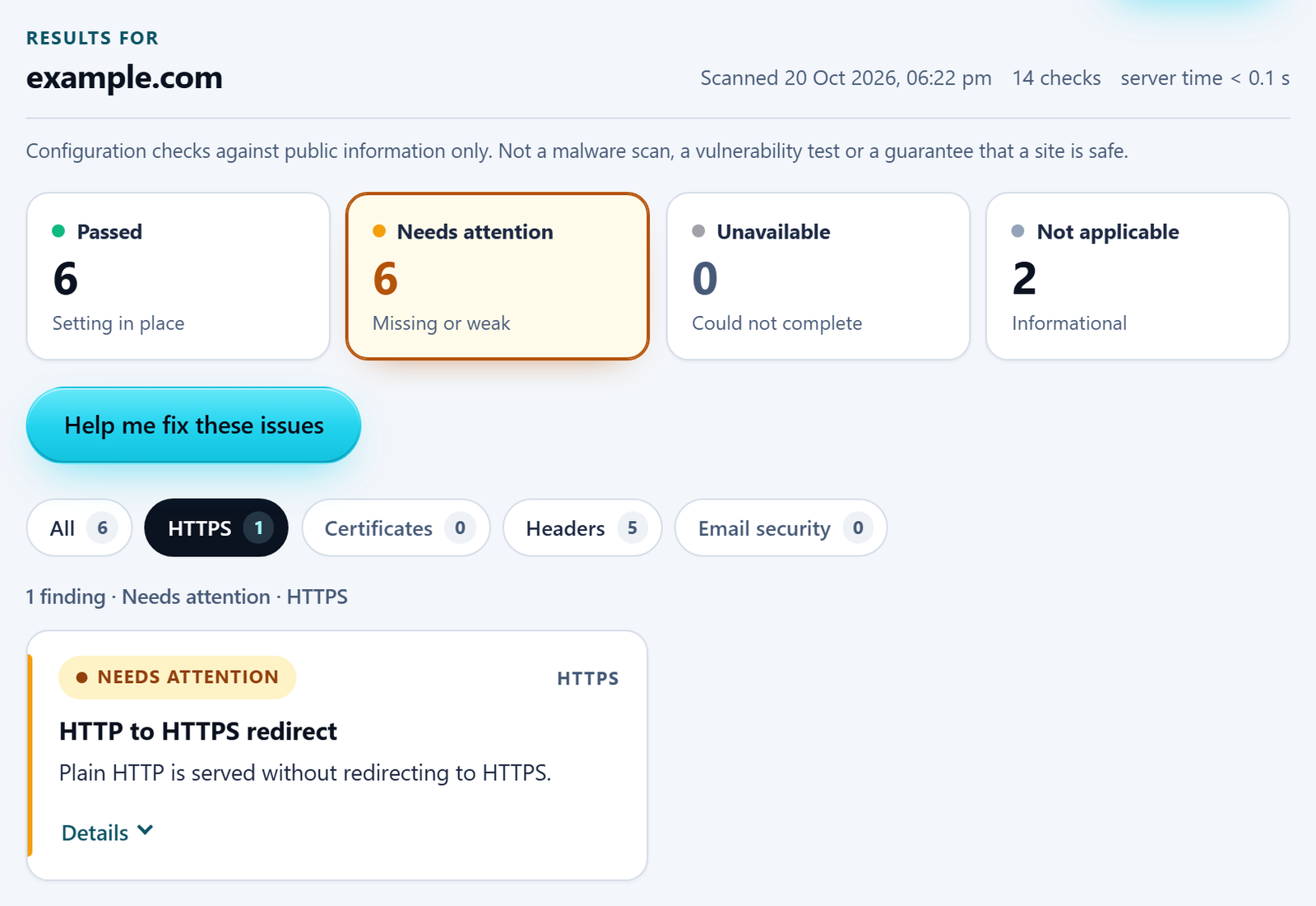
The free checker below reads three of the causes above: whether your site serves HTTPS at all, whether the certificate is valid and how long it has left, and whether plain http:// actually redirects.
It explains any gap in plain English, with a next step.
Where to look in the results
Results open as a dashboard, starting on the findings that need attention. The HTTPS filter narrows the list to the connection and redirect findings, and the Certificates filter to the certificate.
Select the Passed card to see any of these that are already in order.
Each finding has a Details button. It opens What we saw and About this check, plus How to fix with the next step when one is needed.
Check your own site’s HTTPS setup
Free, no account, results in under a minute.
Related reading
If your padlock shows but looks broken or crossed-out rather than a plain “Not Secure” label, that is usually mixed content rather than a missing certificate – see What Is Mixed Content and Why Is My Padlock Broken?.