
A padlock that looks broken, crossed-out, or has a warning triangle over it usually means one thing: mixed content.
The page is loaded securely over HTTPS, but something on it – an image, a script, a stylesheet – is being pulled in over plain, unencrypted HTTP.
The browser flags this because that one insecure request could be intercepted or altered, even though the page around it is encrypted.
Example
The page https://example.com/ is loaded over HTTPS. If it contains the image tag below, it has mixed content, because the image address starts with http://:
<img src="http://example.com/images/logo.png" alt="Example logo">Why this happens
It almost always comes from one of these:
- Content that has hardcoded
http://URLs from before the site moved to HTTPS – an old image tag, a stylesheet link, a script include. - A third-party embed (a widget, an ad, a font, an analytics snippet) that was given out as an
http://address by whoever provides it. - Content stored in a database (common on WordPress and similar CMSes) where post content, widget settings or theme options still reference the old
http://version of the site from before a security migration.
Two kinds of mixed content, and why the difference matters
Browsers treat this in two different ways, depending on what the insecure resource actually is.
Passive mixed content
Passive mixed content covers images, video and audio loaded over HTTP.
Browsers generally still display these but downgrade or remove the padlock, because the resource itself cannot run code, only be viewed.
Active mixed content
Active mixed content covers scripts, stylesheets and iframes loaded over HTTP. Modern browsers block these outright by default.
That is because a script served over an insecure connection could be tampered with and used to run arbitrary code on your page.
If a page looks visually broken right after a move to HTTPS, with missing styles or a script-driven feature not working, this is the usual cause.
Example
Three resources on the HTTPS page https://example.com/, each still loaded over plain HTTP:
| Tag on the page | Kind | What the browser does |
|---|---|---|
<img src="http://example.com/images/team.jpg" alt="Our team"> | Passive | Generally still shows the image, but downgrades or removes the padlock |
<script src="http://example.com/js/menu.js"></script> | Active | Blocks the script by default, so the feature it drives stops working |
<link rel="stylesheet" href="http://example.com/css/style.css"> | Active | Blocks the stylesheet by default, so the page loses those styles |
How to find the exact resource causing it
- Open the page in Chrome or Firefox and open developer tools (F12 or right-click → Inspect).
- Switch to the Console tab and reload the page.
- Look for a warning containing the words “Mixed Content” – it names the exact insecure URL that was blocked or loaded.
This is the fastest way to get a precise answer. Mixed content warnings almost never point at your whole site; they point at one specific file, on one specific page.
Example
On https://example.com/about/, the “Mixed Content” warning might name http://example.com/images/team.jpg. That single image reference is what needs fixing, not the whole site.
How to fix it
Change the URL to https://, or drop the scheme entirely
Once you know which file it is, the direct fix is changing its http:// reference to https://.
Most hosts and CDNs that still work at all today also serve their assets over HTTPS, so this usually just works.
An even more robust version is a protocol-relative or root-relative URL (starting // or /) that inherits whatever scheme the page itself was loaded with.
Example
The same image tag from example.com, before and after each kind of fix:
<!-- Before: loaded over plain HTTP -->
<img src="http://example.com/images/logo.png" alt="Example logo">

<!-- Fix 1: change the scheme to https:// -->
<img src="https://example.com/images/logo.png" alt="Example logo">

<!-- Fix 2: protocol-relative, starting // -->
<img src="//example.com/images/logo.png" alt="Example logo">

<!-- Fix 3: root-relative, starting / (for a file on the same site) -->
<img src="/images/logo.png" alt="Example logo">
Search and replace old URLs stored in a database
If the site runs on a CMS and moved from HTTP to HTTPS at some point, old http://yoursite.com references are commonly still sitting inside post content, widget settings or theme options from before the move.
Most platforms have a dedicated search-and-replace tool or plugin for exactly this, because directly editing a database by hand risks corrupting serialized data.
Example
For a site at example.com, the search-and-replace tool or plugin would be given:
- Search for:
http://example.com - Replace with:
https://example.com
When you cannot control the source
If the insecure resource comes from a third party who does not offer an HTTPS version, the safest options are:
- Self-host that asset instead: download the font or script and serve it from your own, secure domain.
- Drop it, if it is not essential.
Loading it as-is means one of two outcomes:
- For passive content, a visibly broken padlock.
- For active content, a feature that silently stops working, since browsers block it rather than warn about it.
Mixed content is unrelated to whether your certificate itself is valid. A site can have a perfectly good certificate and still trigger this warning purely because of one old image tag. If your padlock issue looks more like a flat “Not Secure” label with no crossed-out padlock, that is more likely a certificate or redirect problem instead – see Why Does My Website Say “Not Secure”?
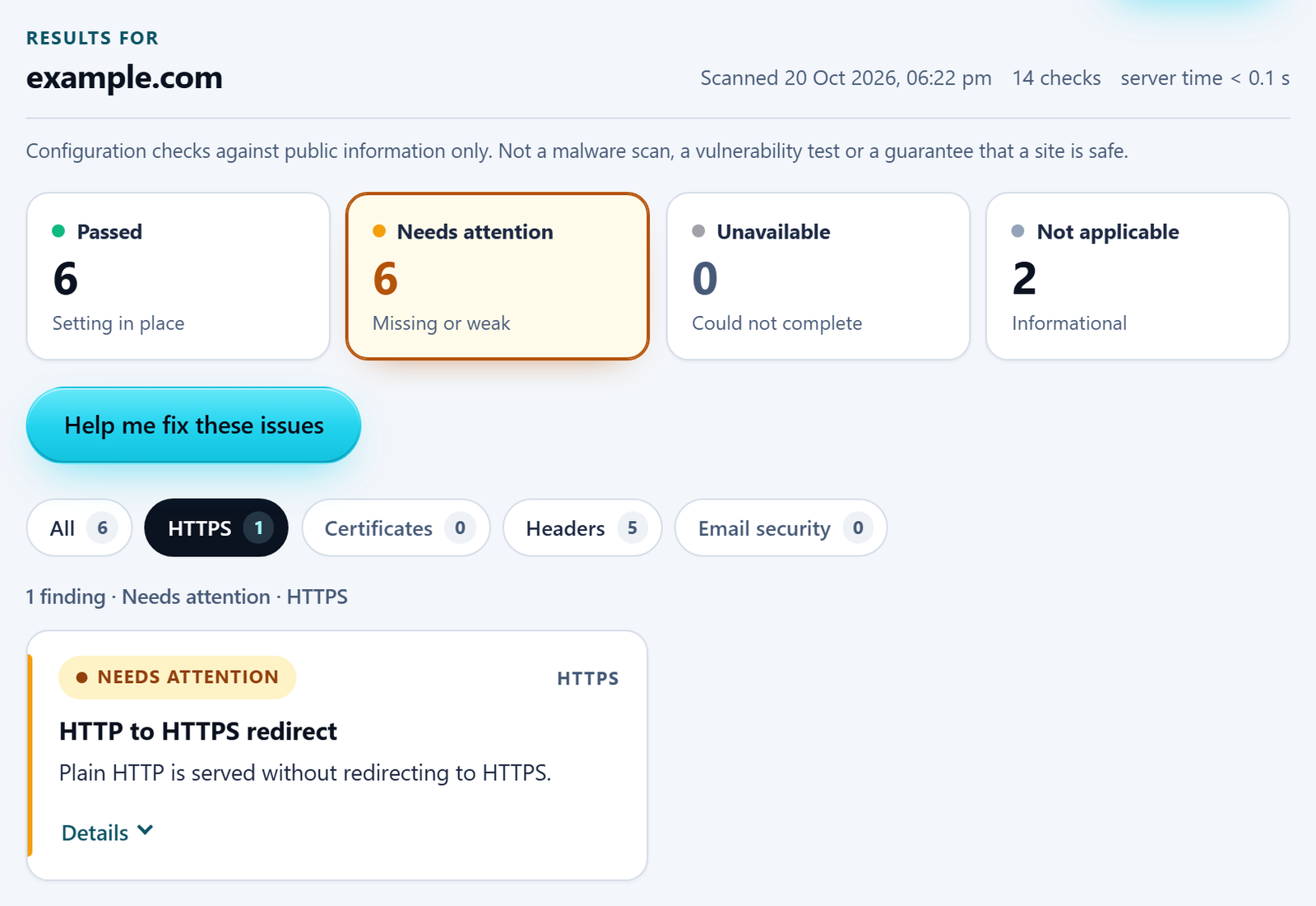
In the free checker’s results, the HTTPS filter covers the HTTPS connection and the HTTP to HTTPS redirect. The certificate has its own Certificates filter.
Check your own site for HTTPS issues
The free checker below confirms your HTTPS setup, certificate and redirect are all in order – the three things a mixed content warning is often mistaken for.