
VAT shows up on almost every invoice and receipt, but the arithmetic behind it trips people up constantly.
Usually that is not because the maths is hard, but because it is easy to apply the right formula to the wrong number.
This guide walks through both directions: adding VAT to a price that does not yet include it, and pulling VAT back out of a price that already does.
Work through the two worked examples below with a calculator open, and the formulas will stop feeling abstract within a couple of minutes.
What VAT is, in plain terms
Value Added Tax (VAT) is a consumption tax added to the price of most goods and services. In practice:
- A business charges it on top of its selling price and collects it from the customer.
- Periodically, the business pays what it collected (minus any VAT it paid on its own purchases) to the tax authority.
- Economically, the end customer carries the cost; the business is mostly just collecting and forwarding it.
The rate is set as a percentage, and it is applied to a base price to produce a tax amount. Everything in this guide follows from that one relationship.
Net and gross: the two numbers you need to keep straight
Almost every VAT mistake comes down to mixing up these two figures:
- Net amount (also called the VAT-exclusive price) – the price before VAT is added. This is usually what a business sets as its selling price.
- Gross amount (also called the VAT-inclusive price) – the price after VAT is added. This is what the customer actually pays, and what appears as the total on a receipt.
The VAT amount itself is simply the difference between the two: Gross − Net = VAT amount. Every formula below is a rearrangement of that one fact.
Adding VAT to a net amount
Start here when you have a VAT-exclusive price and need to work out what the customer will actually be charged.
That VAT-exclusive price might be your selling price, a quoted fee or a wholesale cost.
The formula
VAT amount   = Net amount × (VAT rate ÷ 100)
Gross amount = Net amount + VAT amount

  (equivalently, in one step)

Gross amount = Net amount × (1 + VAT rate ÷ 100)
Worked example: adding VAT
Example
A freelancer quotes a net fee of $1,250.00 for a project, and the applicable VAT rate is 20%.
The 20% rate is used here purely as a round, easy-to-follow example. Your own rate will very likely be different; more on that below.
- VAT amount = 1,250.00 × (20 ÷ 100) = 1,250.00 × 0.20 = $250.00
- Gross amount = 1,250.00 + 250.00 = $1,500.00
The invoice shows all three figures: net $1,250.00, VAT $250.00, total due $1,500.00.
Removing VAT from a gross amount
This is the direction people get wrong most often.
You have a VAT-inclusive price – a shelf price, a card receipt, a supplier’s total – and need to work out how much of it is the net price and how much is tax.
Why you cannot just multiply by the rate
The gross amount already has VAT baked in, so you cannot just multiply it by the VAT rate again. That calculates VAT on top of a price that already includes VAT, and overstates it.
Instead, divide by (1 + VAT rate ÷ 100) first to strip the tax back out. The VAT amount then falls out as the difference.
The formula
Net amount = Gross amount ÷ (1 + VAT rate ÷ 100)
VAT amount = Gross amount − Net amount
Worked example: removing VAT
Example
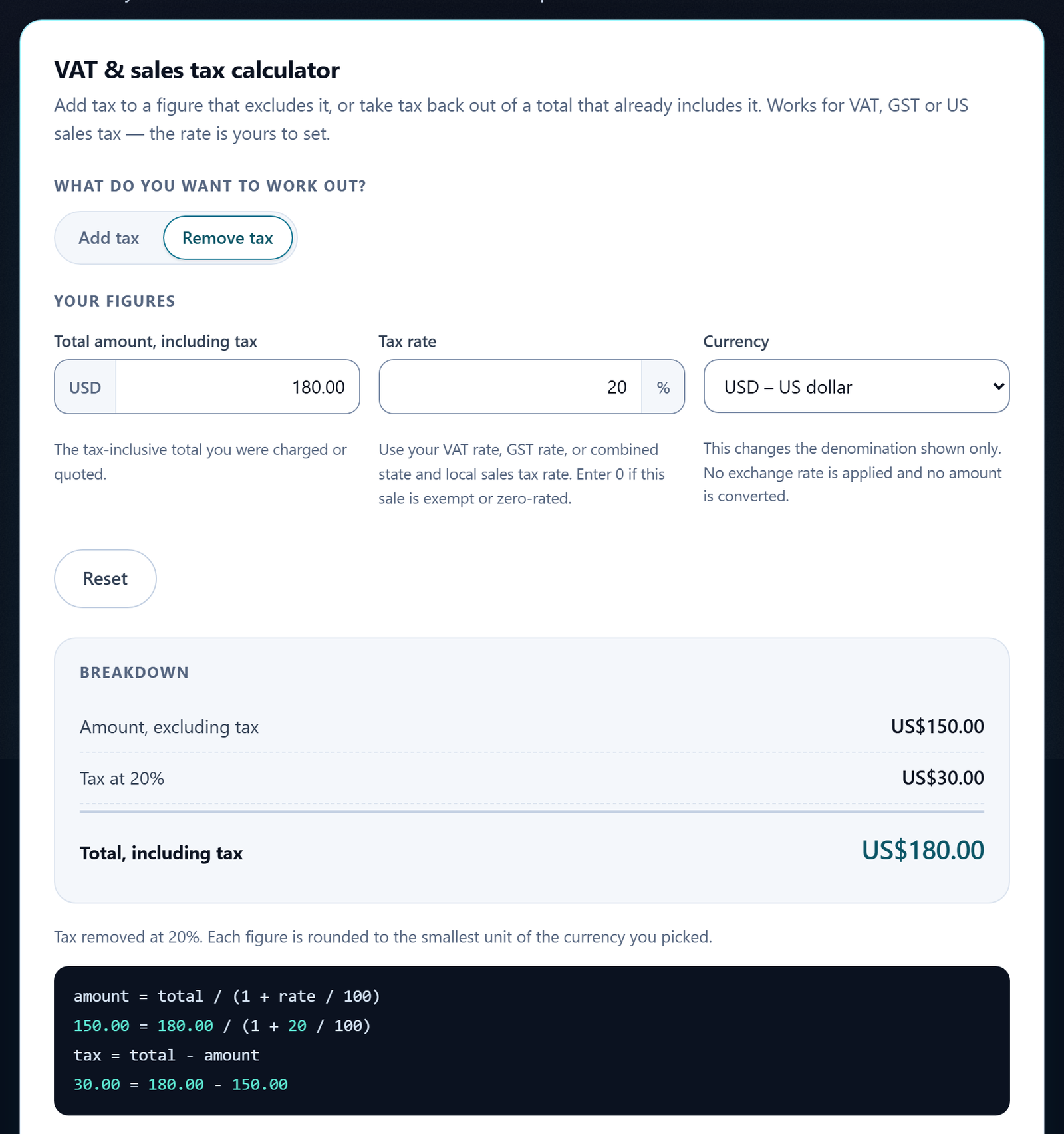
A piece of equipment is priced at $180.00 including VAT, again at a 20% rate.
- Net amount = 180.00 ÷ (1 + 20 ÷ 100) = 180.00 ÷ 1.20 = $150.00
- VAT amount = 180.00 − 150.00 = $30.00
Notice what the wrong shortcut would have given: 180.00 × 0.20 = $36.00, which is $6.00 too much (36.00 − 30.00 = 6.00).
That wrong shortcut is the single most common VAT error there is. It is covered in more detail under common mistakes, below.
Here is the same example in the site’s VAT calculator, with Remove tax selected, a total of 180.00 and a 20% rate:
Try it with your own numbers
The calculator below does both directions. Hand it a net or a gross amount and your rate, and it will show the VAT amount and the other figure alongside it.
VAT & sales tax calculator
Add tax to a figure that excludes it, or take tax back out of a total that already includes it. Works for VAT, GST or US sales tax — the rate is yours to set.
Breakdown
Enter an amount to see the tax breakdown.
See a worked example
These examples use a 20% rate purely to show the arithmetic. It is not a recommendation, and it is not the right rate everywhere — a US sales tax rate is commonly much lower, often single digits.
Adding tax to a figure of 200.00
Removing tax from a figure of 240.00
Note that you cannot get back to the tax-excluded figure by taking 20% off the total: 20% of 240.00 is 48.00, not 40.00. That is why removing tax divides rather than subtracts.
Everything here is worked out in your browser. The figures you type are not sent to us, saved or shared.
Common mistakes
This section covers three mistakes:
- Rounding at the wrong step.
- Confusing net and gross.
- Using the wrong rate.
1. Rounding at the wrong step
Round too early and small errors creep in that show up as a total that is off by a cent or two.
Rounding too early means, say, rounding the VAT rate itself, or rounding an intermediate net figure before you have finished the calculation.
Round only once, at the very end of the calculation, unless your invoicing rules or software specifically require rounding at an earlier step. Some jurisdictions require VAT to be rounded per line item before the lines are summed.
Whichever rule applies, apply it consistently across every line on the same document, or the totals will not reconcile.
Rounding drift is easiest to spot on a multi-line invoice: if you round the VAT on each line separately and then add the lines up, you can land a cent or two away from rounding the pre-tax subtotal once and calculating VAT on that instead. Neither approach is “wrong” on its own, but mixing the two on the same document is what produces a total that will not tie out.
Example
An invoice has three lines, each with a net amount of $10.33, at an illustrative 20% rate.
- VAT rounded per line: 10.33 × 0.20 = 2.066, which rounds to $2.07. Three lines: 2.07 × 3 = $6.21.
- VAT on the subtotal: 10.33 × 3 = $30.99, and 30.99 × 0.20 = 6.198, which rounds to $6.20.
The two methods land one cent apart ($6.21 − $6.20 = $0.01). Use whichever one your rules require, on every line of the document.
2. Confusing net and gross
This is what causes the “multiply the gross by the rate” error in the second worked example above.
If you are not certain whether a figure already includes VAT, check the source (a contract, a receipt, a supplier’s terms) before doing anything with it.
Guessing wrong sends the error in the opposite direction from what you would expect. Doubling back to fix it is more work than checking once at the start.
Example
A supplier’s figure of $180.00 gives two different answers at an illustrative 20% rate, depending on whether it includes VAT:
- If $180.00 is net: VAT = 180.00 × 0.20 = $36.00, so the total is 180.00 + 36.00 = $216.00.
- If $180.00 is gross: net = 180.00 ÷ 1.20 = $150.00, so the VAT is 180.00 − 150.00 = $30.00.
Check the source before you calculate, so you know which one applies.
3. Using the wrong rate
There is rarely just one VAT rate. Most systems that use VAT have a standard rate plus one or more reduced rates for specific categories of goods or services.
Some items are zero-rated or exempt outright, and rates also change over time.
Applying the standard rate to something that actually qualifies for a reduced or zero rate (or using last year’s rate after a change) produces a confidently wrong answer.
Rates vary by country and by category
Every number in this article is illustrative. VAT (and equivalent taxes under other names) is set independently by each country, standard rates differ widely, reduced and zero rates apply to specific categories such as food, books or children’s items in many places, and rates change when governments change policy.
This article explains the calculation mechanics, not the rate or rules for any specific jurisdiction. Confirm your current rate and which category your goods or services fall under with your own tax authority, your accountant, or your bookkeeping software before you rely on it for pricing or filing.
Check your figures before you send the invoice
The formulas above will get you the right answer every time, as long as you keep net and gross straight and round at a consistent point.
If you would rather not do the arithmetic by hand, the VAT & Sales Tax Calculator handles both directions and does the rounding for you.